A logo with a white box or colored background can look out of place on a website, business card, presentation, or social media graphic. To make your logo work across different designs, remove the unwanted background and save a version with transparency.
You can remove a background from a logo online using PicResizerTool’s Background Remover. Upload a supported image, choose the background you want after removal, process the image, and download the result. The tool currently lists JPG, PNG, and WebP uploads up to 12 MB, with transparent, white, black, and blue background options.
For most logos that need to sit over different colors, a transparent PNG is a practical choice. However, the quality of the result depends on the original logo, its edges, and how clearly the foreground can be separated from the background.
How to Remove Background from Logo Online

Follow these steps to prepare your logo for a website, presentation, online store, or marketing design.
Step 1: Open the Background Remover
Visit PicResizerTool’s Background Remover. The page provides an image upload area and options for selecting the background after removal.
Step 2: Upload Your Logo
Select the logo file from your device. You can also drag and drop it into the upload area if that is more convenient.
The tool lists these supported input formats:
- JPG or JPEG
- PNG
- WebP
The current upload limit displayed on the tool page is 12 MB. If your image exceeds that limit, prepare a smaller file before uploading it.
For the cleanest result, start with the highest-quality logo file available. A sharp, high-resolution image usually gives you better edges to work with than a tiny, blurry image.
Step 3: Choose the Background Result
PicResizerTool provides four background choices after removal:
- Transparent: Use this when the logo needs to sit over different colors or images.
- White: Choose this for documents, white website headers, or designs that require a solid white background.
- Black: Useful when preparing a logo for a dark design, provided the logo remains visible.
- Blue: Suitable for designs that specifically need a blue background.
If you want the logo to blend naturally into different layouts, select the transparent option.
Step 4: Remove the Background
Select the background-removal option to process the image. The tool states that it uses Remove.bg AI and is designed for images such as portraits, products, and animals. Logos may require closer inspection, especially when they contain thin lettering, small symbols, shadows, or colors similar to the background.
Wait for processing to finish before moving to the download step.
Step 5: Inspect the Logo Carefully
Do not download a result simply because the background appears to be gone. Zoom in and check the edges, lettering, and internal spaces.
Look for:
- White outlines around dark letters
- Missing parts of thin text or symbols
- Background-colored pixels between letters
- Jagged or blurry edges
- Unwanted holes in solid shapes
- Shadows or decorative details that have disappeared
If the result is not suitable for your intended use, try a better-quality source image or use a vector-editing application for more precise control.
Step 6: Download and Verify the Result
Use the download option displayed by the tool. Then open the saved image in an application that supports transparency.
A transparent image may appear on a checkerboard pattern in an editor. Place it over a dark and a light background to check whether the unwanted box has disappeared.
For better image discoverability and accessibility, follow Google’s image SEO best practices, including its guidance on descriptive filenames and useful alt text.
Important: Verify the downloaded file’s format and transparency rather than assuming every download preserves an alpha channel. The result must support transparency if you intend to use the logo without a background.
Why Should You Remove a Logo Background?
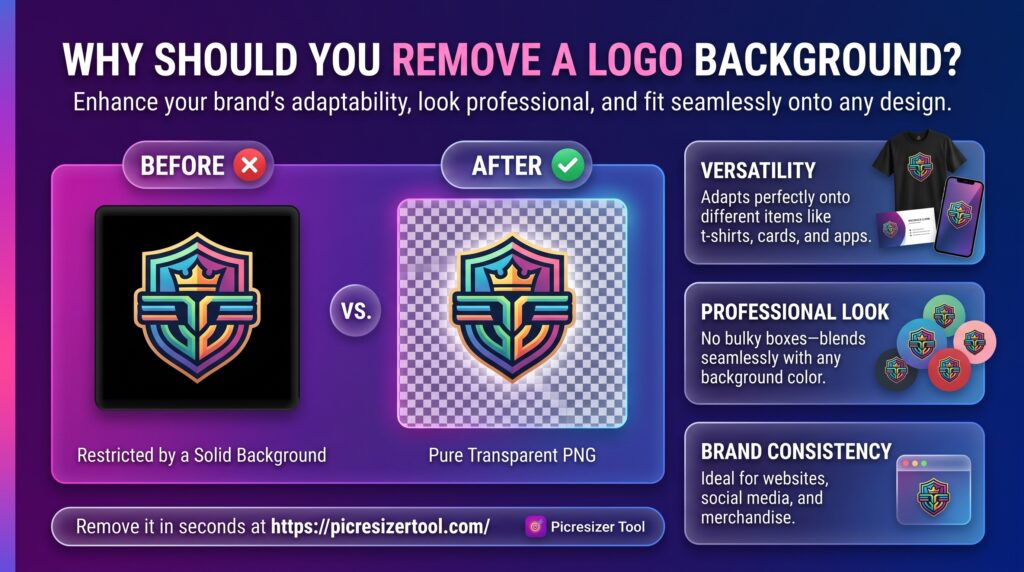
Removing a logo background makes the image easier to use across different designs without the original rectangular area interfering with the layout.
Use Your Logo on a Website
A transparent logo can sit over a website header, colored section, or footer without a contrasting white rectangle. This is particularly helpful when the website uses a brand color other than white.
Prepare Marketing Materials
Transparent logos are useful in presentations, brochures, posters, promotional graphics, and social media designs. You can position the logo over a suitable background without recreating the entire design.
Improve Product and Brand Graphics
Online sellers and small businesses often place their logos on product images, packaging mockups, and promotional banners. A transparent version gives you more flexibility when arranging these elements.
Create Consistent Brand Assets
Keeping a clean logo file makes it easier to reuse the same brand mark across multiple materials. Save the original file separately so you can return to it if you need another version later.
What Is a Transparent Logo?
A transparent logo is an image in which some pixels are invisible rather than filled with a solid background color. Transparency is commonly stored using an alpha channel, which controls how opaque or transparent each pixel appears.
For example, imagine a black logo originally saved on a white rectangle. After successful background removal, the black logo remains visible while the surrounding white pixels become transparent. When you place the result on a blue website header, the blue background shows through the transparent areas.
Transparency is different from simply making a background white, black, or another color. A solid background remains visible when you move the logo to a different design.
Why PNG Is Often a Good Choice
PNG supports transparency and is widely supported by image editors, browsers, and design applications. Learn more about PNG and other image file types.
JPG does not support transparency. If you save a transparent logo as JPG, the transparent areas must be filled with a solid color.
WebP also supports transparency and may be useful for web graphics where browser compatibility and file size matter. Check that the software or platform you plan to use accepts your chosen format.
For a logo that will be reused in different places, keep a transparent PNG when available and retain the original source file as well.
How to Remove a White Background from a Logo
White backgrounds are common because many logos are exported on a white canvas or saved as JPEG files. The main challenge is separating the white background from any white elements that belong to the logo itself.
Use this approach:
- Upload the best-quality version of your logo.
- Process it with the background-removal tool.
- Select transparency if you want to remove the white area entirely.
- Inspect the edges and any white letters, highlights, or symbols.
- Test the result against a dark background to see whether unwanted white pixels remain.
- Download and verify the saved image.
What if the Logo Contains White Text?
A white logo on a white background is difficult to separate because the foreground and background share the same color. Automatic removal may erase parts of the actual logo or leave unwanted white areas.
If the logo is white, try to obtain the original transparent file or a version placed on a contrasting background. A vector source file may also help because it can preserve the logo’s shapes and colors independently of a raster background.
Do not assume every white pixel is unwanted. Some logos intentionally include white lettering, highlights, or decorative elements.
Common Logo Background Removal Problems and Fixes
Even when the background has been removed, the resulting logo may need further attention.
| Problem | Why it happens | What to do |
|---|---|---|
| White fringe around the logo | The original image contains pale edge pixels or compression artifacts | Start with a cleaner, higher-resolution source and inspect the outline |
| Letters disappear | The lettering resembles the background color | Use a contrasting source image or edit the logo manually |
| Edges look jagged | The source is small, pixelated, or heavily compressed | Find a larger source or use a vector version |
| Background remains in small gaps | The removal process has not separated every background area | Inspect spaces inside letters and symbols; use a more precise editor if necessary |
| Logo looks blurry | The original image has limited detail | Obtain a higher-resolution source instead of enlarging the result excessively |
| Transparency appears white | The viewer may display transparent pixels against a white canvas | Test the file over a contrasting background in an editor |
How to Check Whether a Logo Is Truly Transparent
A white preview does not necessarily mean the background is still present. Some applications display transparency against white by default.
To verify your file:
- Open the downloaded image in an editor that supports transparency.
- Place a dark-colored layer behind it.
- Check whether the background around the logo reveals that color.
- Repeat with a light-colored background.
- If a solid rectangle remains in both cases, check the file format and repeat the export using a transparency-supporting format.
This simple check helps distinguish a genuinely transparent logo from an image that merely looks white.
Best Practices for Clean Logo Background Removal
A few precautions can help you achieve a more usable result.
Start with the Original Logo
Whenever possible, use the original artwork rather than a screenshot copied from a website. Screenshots can contain browser elements, extra whitespace, scaling artifacts, or compression that makes clean edges harder to recover.
Preserve the Logo’s Shape and Colors
Removing the background should not change the brand mark itself. Review letter shapes, spacing, symbols, and colors before using the result in public-facing materials.
Keep an Original Copy
Save the source image before making changes. This gives you a fallback if the processed result loses detail or if you need another version with a different background.
Choose the Output for Its Intended Use
Use transparency when the logo must blend into different designs. Choose a solid background when a specific layout requires one. If the logo will be used in professional print production or at very large sizes, check whether the printer or designer needs a vector file instead.
Avoid Enlarging a Low-Quality Logo Too Much
Background removal cannot recreate all the detail missing from a small or blurry source image. Enlarging it may make jagged edges more obvious. A high-resolution raster file or original vector artwork is usually a better starting point.
Remove a Logo Background with PicResizerTool
PicResizerTool provides a dedicated Background Remover for processing supported images online. Its interface lists JPG, PNG, and WebP uploads up to 12 MB, background options for transparency, white, black, and blue, and a download control.
To get started, open the tool, upload your logo, choose the background result, and process the image. Inspect the downloaded file before adding it to a website, online store, presentation, or social media graphic.
The tool is one option for straightforward background removal. Logos with complex gradients, overlapping colors, fine outlines, or white details may still require manual editing. Check the result rather than assuming automated processing will preserve every detail.
Frequently Asked Questions
How can I remove a background from a logo online for free?
Open an online background-removal tool, upload your logo, select the desired background result, process the image, and download it. PicResizerTool’s Background Remover currently lists free access on its homepage and supports JPG, PNG, and WebP uploads up to 12 MB. Check the live tool for its current options.
How do I make a logo background transparent?
Remove the solid background using an image editor or background-removal tool, then export the result in a format that supports transparency, such as PNG. Test the saved image against different background colors to confirm that the transparent areas work correctly.
Can I remove a white background without deleting white letters?
Sometimes, but the result depends on the image and the removal method. White letters on a white background may be indistinguishable from the background. A contrasting source image, original vector file, or careful manual editing can help preserve those details.
Is PNG or JPG better for a transparent logo?
PNG is generally the more suitable choice because it supports transparency. JPG does not support transparent pixels. WebP is another option when the intended platform supports it.
Why does my logo have a white outline after background removal?
The original image may contain pale pixels around its edges, especially if it was saved against white or compressed as a JPEG. Try using a higher-quality source, inspect the outline at high magnification, and refine the edges in an editor if needed.
Will removing the background improve my logo’s quality?
Background removal changes which parts of the image remain visible; it does not automatically increase the original resolution or restore lost detail. A low-resolution logo can still look blurry after the background has been removed.
Can I use a transparent logo on any website background?
Usually, provided the website accepts the file format and the logo contrasts sufficiently with the surrounding design. A black logo may disappear on a dark header, while a white logo may be hard to see on a light background. Check visibility before publishing.
Can I use an SVG logo instead of a PNG?
Yes. SVG is a vector format that can preserve crisp shapes at different sizes and often works well for logos. However, an existing SVG may need editing rather than raster background removal. Check the requirements of your website, design application, or printing workflow before choosing the format.
Final Thoughts
Removing an unwanted logo background makes it easier to reuse your brand identity across websites, documents, product graphics, and marketing materials. For flexible placement, a transparent PNG is often a practical choice.
Start with a high-quality source image, remove the background, inspect the logo’s edges and internal details, and verify the downloaded file before publishing it. You can begin with PicResizerTool’s Background Remover and choose the output that fits your design.